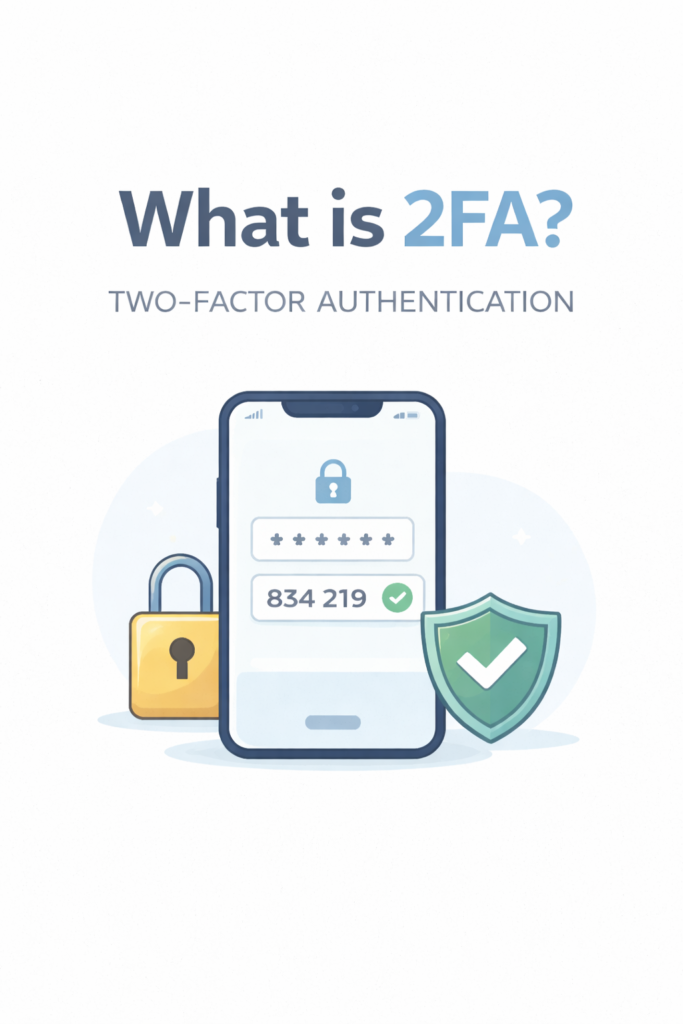
What is 2FA? Learn how two-factor authentication works, see real examples, and find out which 2FA method is safest for your accounts.
What Is 2FA?
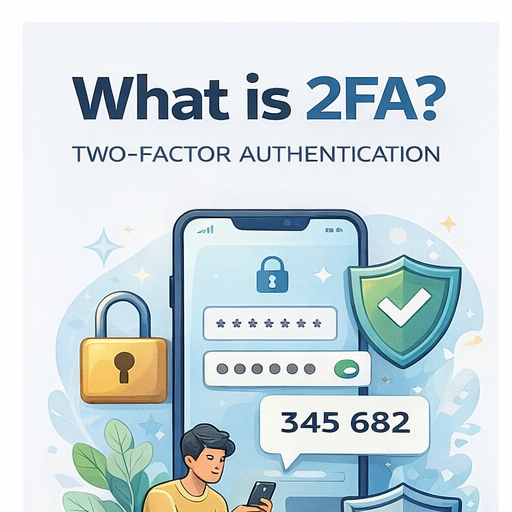
2FA is a simple security feature that adds a second step after your password. So even if someone steals your password, they still usually can’t log in without that extra verification.
In this post, I’ll explain what 2FA means in simple words, show real-life examples, and also tell you which type of 2FA is actually the safest (because not all of them are equally good).
What Does 2FA Mean?
2FA means Two-Factor Authentication, but a lot of people also call it two-step verification. It’s basically when you need two steps to sign in, not just one.
Normally, logging in looks like this:
- Enter password → you’re in
But with 2FA enabled it becomes:
- Enter password → then verify again → then you’re in
So yeah, it’s like adding a second lock on your account.
Also, 2FA is actually a type of MFA.
MFA means Multi-Factor Authentication, which is like the bigger category. 2FA is just the version where you use exactly 2 factors.
If you want the full explanation, read this too:
What is MFA? How it works & why it matters
How Does 2FA Work?
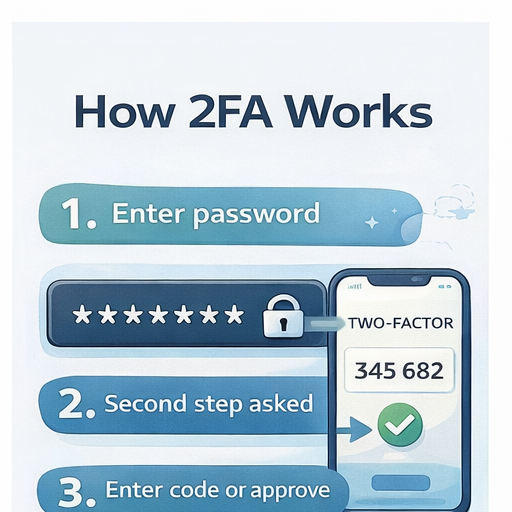
2FA is not complicated at all. Here’s the simple flow:
- You enter your password
Like normal, nothing special. - The site asks for a second step
It might ask for a code, a login approval, or a fingerprint. - You approve or enter the code
This is the extra security step. - You get access
Only after both steps are correct, you can log in.
That’s literally how it works. It’s just password + one extra check.
What Are the 3 Types of Authentication Factors?
2FA works by combining 2 different “factors” (proofs).
There are 3 main types.
1) Something you know
This is stuff like:
- Password
- PIN
- Security questions
This is the most common factor and also the easiest one to steal.
2) Something you have
This is stuff you physically have, like:
- Your phone
- Authenticator app
- Security key (USB key)
This is harder for hackers because they need access to your device.
3) Something you are
This is your biometrics, like:
- Fingerprint
- Face ID
- Iris scan
This is super convenient, but not every website uses it yet.
So 2FA usually combines two of these.
Example: password + phone code.
Examples of 2FA
If you’ve ever gotten a random code while logging in, you’ve already used 2FA.
Here are some examples people instantly recognize:
- Google login code
You try logging in and Google sends a code to your phone or asks you to approve. - Instagram login alert
Instagram sometimes says: “We noticed a login attempt, was this you?” - Bank OTP
Banks send OTP codes for logins and transactions (very common in India too). - Steam Guard
Steam gives you a special code in the app when you log in from a new device. - Microsoft login prompt
Microsoft can send a code or show a number you need to match on your phone.
So yeah, 2FA is already everywhere. Most people just don’t realize what it’s called.
Is 2FA the Same as MFA?
Not exactly, but they’re related.
2FA = exactly 2 steps
Example:
- Password + SMS code
- Password + authenticator app
- Password + security key
MFA = 2 or more steps
MFA can be:
- Password + code + fingerprint
- Password + app approval + security key
So basically:
2FA is a type of MFA.
MFA is the bigger umbrella.
Which 2FA Method Is the Safest?
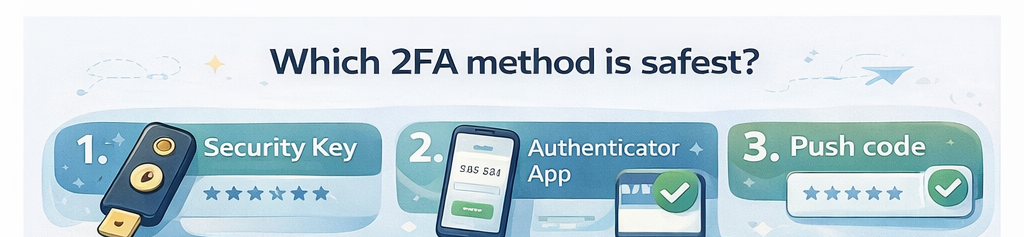
Not all 2FA methods are equally secure. Some are really strong, and some are… kinda weak but still better than nothing.
Here’s the ranking from best to least safe :
Security key (best)
This is the safest option.
A security key is like a physical device (usually USB) you plug in to verify your login. Hackers can’t easily steal this remotely, which makes it extremely strong.
Pros:
- Best protection against phishing
- Very hard to hack
- Works great for important accounts
Cons:
- Costs money
- Easy to lose if you’re careless
Authenticator app
This is the best option for most normal people.
Apps like:
- Google Authenticator
- Microsoft Authenticator
- Authy
They generate codes that change every few seconds.
Pros:
- Much safer than SMS
- Works offline
- Easy to set up
Cons:
- If you lose your phone, you need backup codes
Push notifications
This is when you get a notification like:
“Approve sign in?”
This is common on Google and Microsoft.
Pros:
- Very easy and fast
- No typing codes
Cons:
- People sometimes approve by mistake
- Can be tricked with “prompt spam” attacks
Still good, but not perfect.
SMS codes (least safe)
This is the weakest 2FA method.
It’s still better than having no 2FA, but SMS can be attacked in different ways.
Pros:
- Easy
- Works on any phone
Cons:
- Can be hacked with SIM swapping
- SMS can be intercepted sometimes
- Phone number can be targeted
If possible, use an authenticator app instead.
Can 2FA Be Hacked?
Yes. But it’s way harder than hacking just a password.
A password alone is super easy to steal through:
- data breaches
- phishing
- password reuse
2FA blocks a lot of those attacks.
But hackers still have ways to bypass 2FA sometimes, like:
SIM swapping
This is when a hacker tricks your mobile provider into giving them your phone number. Then they receive your SMS codes.
Phishing
Hackers make fake login pages that look real. You type your password AND your 2FA code, and they steal both.
Session hijacking
This is more advanced, but basically the attacker steals your login session (like your browser cookie) so they don’t even need the code.
(You can totally make separate posts on these later, they’re good SEO topics.)
So yes, 2FA can be hacked. But it still massively reduces risk.
Do You Still Need a Strong Password If You Use 2FA?
YES. 100%.
A lot of people think:
“I have 2FA so my password doesn’t matter.”
That’s not true.
2FA helps, but passwords still matter because:
- If your password is weak, it can be guessed
- If you reuse passwords, one breach can affect many accounts
- Some attacks don’t even need 2FA if your session gets stolen
So you still need a strong password, and you should avoid reusing it.
👉 Read this next:
How to create a strong password you can remember
How to Turn On 2FA (Quick Guide)
You don’t need a full tutorial for each app, but here’s the quick direction for the most popular ones.
Go to:
Google Account → Security → 2-Step Verification
Go to:
Settings → Accounts Center → Password and Security → Two-factor authentication
Go to:
Settings → Password and Security → Two-factor authentication
Microsoft
Go to:
Microsoft Account → Security → Advanced security options
Apple ID
Go to:
Settings → Apple ID → Password & Security → Two-Factor Authentication
If you ever see “2-Step Verification” or “Two-factor authentication” in settings, it’s the same thing basically.
Final Thoughts: Is 2FA Worth It?
Yes, 2FA is 100% worth it.
It’s one of the easiest security upgrades you can do, and it can protect you from a lot of common attacks. Even if someone gets your password, they still need that second step.
For most people, the best option is:
Authenticator app
And the first accounts you should protect are:
- your email (most important)
- banking apps
- social media
- anything with saved payments
It takes like 2 minutes to set up, and it can save you from a lot of stress later.
FAQ
What is a 2FA code?
A 2FA code is a temporary code you enter after your password. It’s usually sent by SMS, generated in an authenticator app, or shown in a login approval prompt.
What does 2FA mean in texting?
In texting, 2FA usually just means “two-factor authentication.” People use it when talking about login security, account protection, or verification codes.
Is 2FA free?
Yes, in most cases 2FA is completely free. Apps like Google Authenticator and Microsoft Authenticator are also free.
What is the difference between OTP and 2FA?
OTP (One-Time Password) is just the code itself.
2FA is the whole system: password + OTP (or another second step).
So OTP is part of 2FA, but not the full thing.
Should I use SMS or an authenticator app?
If you have the option, use an authenticator app.
SMS is better than nothing, but it’s the least secure 2FA method. Authenticator apps are safer and harder for hackers to bypass.