Curious what is an authenticator app? Learn how it works, why it’s safer than SMS, the best apps to use, and what to do if you lose your phone.
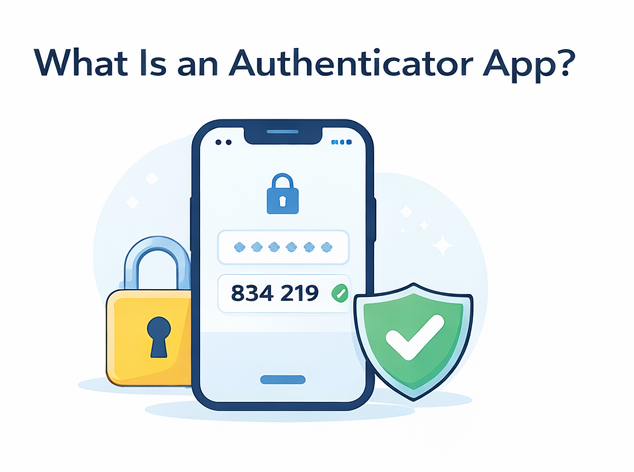
What Is an Authenticator App?
An authenticator app is basically a security app that gives you a new code every few seconds. You enter that code after your password to prove it’s really you. And yes, it’s way safer than SMS codes in most cases.
It generates a temporary 6-digit login code for your account. This code is used as a second step after you enter your password.
So instead of just:
- Password → logged in
It becomes:
- Password → authenticator code → logged in
These apps are used for 2FA (Two-Factor Authentication), which is one of the best and easiest ways to protect your accounts from hackers.
Some quick things an authenticator app does:
- It generates codes that change every 30 seconds
- It works even without internet (most of the time)
- It helps protect your account even if your password gets leaked
It’s basically like having a second lock for your account, but on your phone.
Why Do Websites Ask for an Authenticator App?
Websites ask for an authenticator app because passwords alone are not enough anymore. Like honestly, passwords get stolen way too often.
Here’s why:
Password leaks happen all the time
Big companies get breached. Sometimes it’s not even your fault, but your password ends up in a leak.
People reuse passwords
Most people use the same password on multiple sites. So if one site gets hacked, attackers try the same password on your email, Instagram, etc.
Phishing attacks
Hackers can trick people into typing their password into a fake website.
Credential stuffing
This is when hackers take leaked passwords and try them automatically on many sites.
So basically, an authenticator app is there because the internet is kinda messy and people steal passwords daily.
How Does an Authenticator App Work? (Step-by-Step)
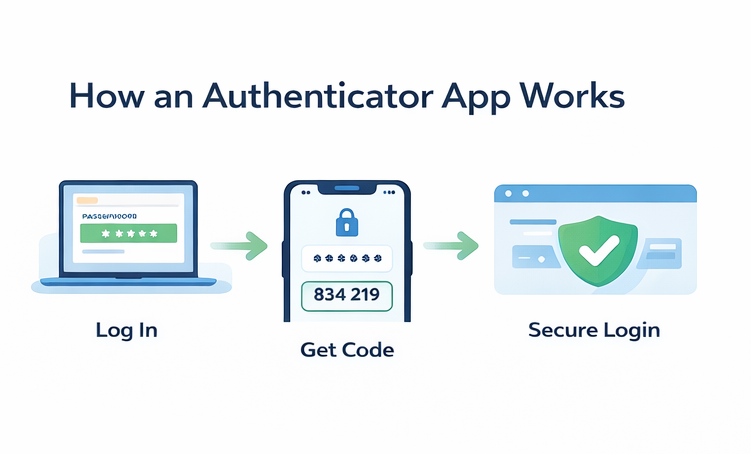
This is the simplest way to understand it:
- You log in normally
You enter your email/username and password. - The website asks for a code
It says something like: “Enter the 6-digit verification code.” - You open your authenticator app
Example: Google Authenticator or Microsoft Authenticator. - The app shows a 6-digit code
The code is always changing. - You type the code into the website
Usually you have about 30 seconds before it refreshes. - You get access
If the code is correct, you’re logged in.
That’s it. It’s not complicated, it just looks scary the first time.
What Is a TOTP Code? (Don’t Worry, It’s Simple)
Most authenticator apps use something called TOTP.
TOTP means:
Time-Based One-Time Password
Yeah it sounds technical, but it’s simple.
It just means:
- The code changes based on time
- It refreshes every 30 seconds
- The code can only be used once
This is why even if a hacker sees your code later, it won’t work anymore.
Authenticator App vs SMS Code
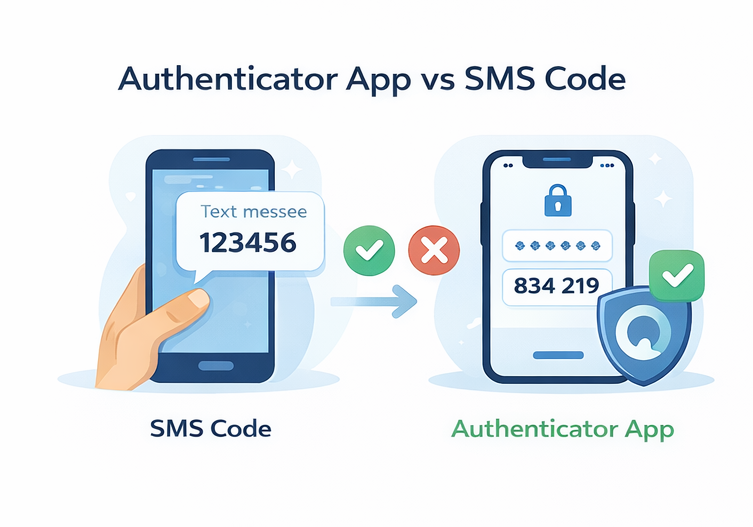
A lot of people ask:
“Why not just use SMS codes?”
And the answer is: you can, but it’s weaker.
Why SMS 2FA is weaker
SMS codes can be attacked using things like:
- SIM swapping (someone steals your phone number)
- Phone number targeting
- SMS interception (rare, but possible)
Also, SMS depends on your network. Sometimes OTP doesn’t arrive, which is annoying.
Why authenticator apps are safer
Authenticator apps are safer because:
- They don’t rely on your SIM card
- Hackers can’t steal your phone number easily
- Codes work offline
- It’s harder to intercept
So if you have the option, authenticator app is almost always better.
Best Authenticator Apps
There are many authenticator apps, but these are the most popular ones and actually good.
Google Authenticator
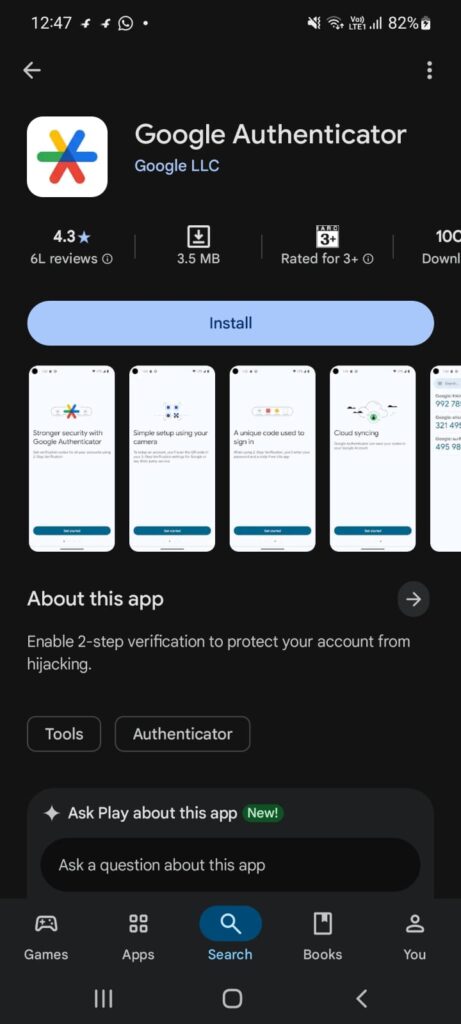
This is the most common authenticator app. It’s simple and works fine.
Pros:
- Easy to use
- Works for almost every website
- Lightweight and fast
Cons:
- Basic features (not much customization)
- If you don’t backup properly, losing phone can be painful
Microsoft Authenticator
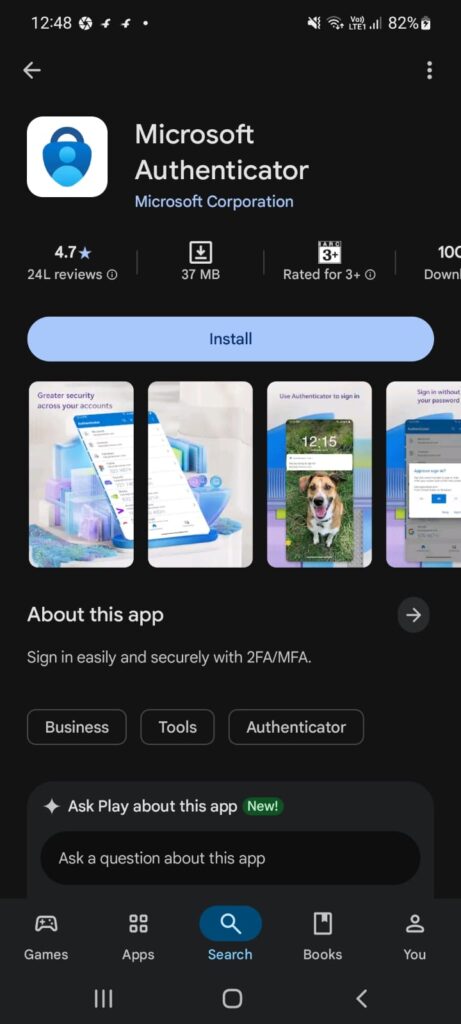
Microsoft Authenticator is also very good, even if you don’t use Microsoft accounts.
Pros:
- Works great for Microsoft logins
- Can use push notifications
- Clean interface
Cons:
- Sometimes feels a bit heavy compared to Google Authenticator
Authy
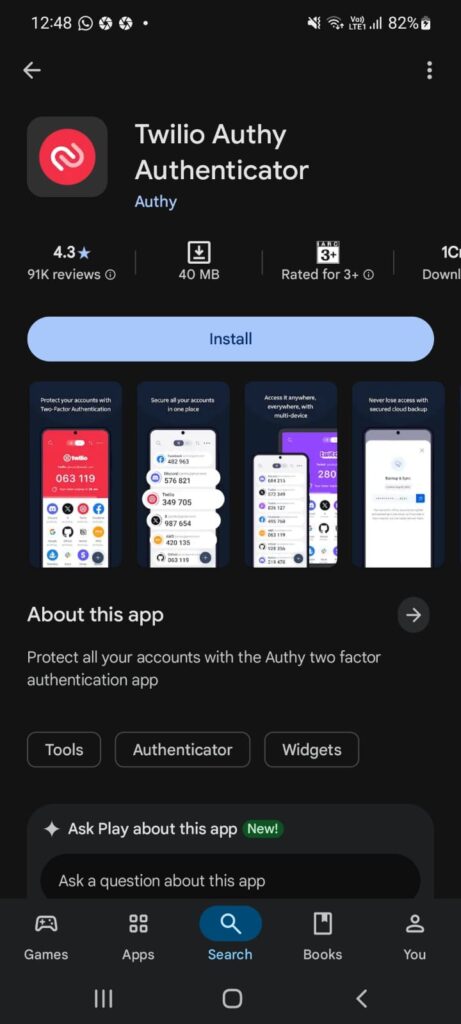
Authy is popular because it offers syncing and multi-device support.
Pros:
- Backup and sync (good for safety)
- Multi-device support
Cons:
- Some people don’t like cloud syncing for security reasons
Still, it’s a solid app.
1Password (Built-in Authenticator)
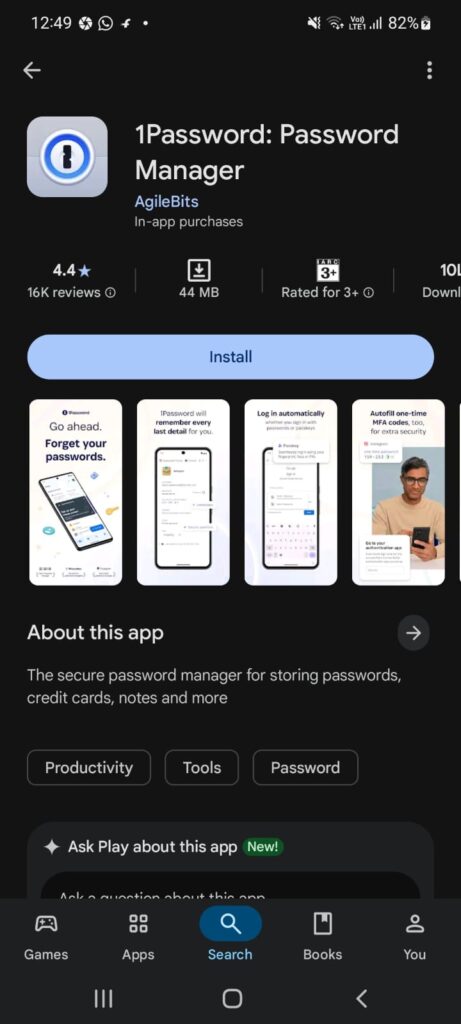
If you already use a password manager like 1Password, it can store your 2FA codes too.
Pros:
- Everything in one place
- Very convenient
Cons:
- If your password manager gets compromised, it’s risky
- Not free
For most beginners, Google or Microsoft Authenticator is easier.
How to Set Up an Authenticator App (Quick Guide)
Setting up is usually the same on most websites.
Here’s the basic process:
- Go to your account settings
- Open Security or Login & Security
- Find Two-factor authentication
- Choose Authenticator app
- The website shows a QR code
- Open your authenticator app
- Scan the QR code
- The app generates a code
- Enter that code to confirm setup
After that, your account will ask for a code whenever you log in.
Also, most websites will give you backup codes too. Don’t skip that part.
What Happens If You Lose Your Phone?
This is the part people worry about the most, and honestly yeah it can be stressful.
If you lose your phone and you don’t have backups, you might get locked out of your account.
What usually happens:
- You try to login
- It asks for authenticator code
- You don’t have your phone
- You can’t login
So what do you do?
Usually you can recover using:
- Backup codes
- Account recovery options
- Trusted devices
- Email verification (depends on platform)
But some websites are strict, and recovery can take days.
So don’t ignore backups, seriously.
Backup Codes Explained (And Why You Need Them)
Backup codes are basically emergency codes you can use if:
- You lose your phone
- Your authenticator app gets deleted
- Your phone is broken
Websites usually give you like 5–10 backup codes.
Important:
Each backup code works only once.
So you should store them safely.
Best places to store backup codes:
- Password manager
- Printed paper in a safe place
- Encrypted notes
Worst places:
- Plain Notes app
- Screenshots in gallery
- Sending it to yourself on WhatsApp
Authenticator App Tips (So You Don’t Get Locked Out)
Here are some simple tips that can save you later:
- Always save backup codes
- Use an authenticator app that supports backup (if you want)
- Don’t share your codes with anyone
- Don’t scan QR codes on random websites
- Enable 2FA on your email first (most important)
- If you change phones, transfer your codes before resetting old phone
Many people forget this and regret it later.
Is an Authenticator App the Same as 2FA or MFA?
Not exactly.
An authenticator app is one method used for 2FA or MFA.
2FA
2FA means:
- Password + one extra step
MFA
MFA means:
- 2 or more steps
So 2FA is a type of MFA, but MFA can also include 3 steps.
If you want the full beginner explanation, read these:
What Is 2FA? (Two-Factor Authentication)
What is MFA? How it works & why it matters
Is an Authenticator App Safe?
Yes, authenticator apps are safe for most people and they’re one of the best security upgrades you can do.
But they are not magic.
There are still risks like:
Phishing
If you type your password + 2FA code into a fake website, a hacker can steal it instantly.
So always check the URL before entering codes.
Malware
If your phone is infected, your codes could be exposed (rare, but possible).
Session hijacking
Hackers sometimes steal login sessions instead of the code.
But overall:
Authenticator apps are still WAY safer than SMS codes.
Also, the strongest option is still a security key (like YubiKey), but most normal people don’t need that.
Final Thoughts: Should You Use an Authenticator App?
Yes, you should.
If you want the easiest and most practical security upgrade, authenticator apps are one of the best things you can enable.
For most people, I recommend:
- Microsoft Authenticator or
- Google Authenticator
And the first accounts you should protect are:
- Banking
- Instagram/Facebook
- Any account with saved cards
It takes like 2 minutes to set up, but it can save you from getting hacked and losing your account later.
FAQ
What is an authenticator app used for?
An authenticator app is used to generate a 6-digit code for 2FA. It helps protect your account by adding a second login step after your password.
Does an authenticator app need internet?
No, most authenticator apps do not need internet. They generate codes based on time, so they work offline too.
Is Google Authenticator free?
Yes, Google Authenticator is free on Android and iPhone.
What’s the difference between OTP and authenticator app?
OTP is just the one-time code. An authenticator app is the tool that generates those OTP codes automatically every few seconds.
Can hackers bypass authenticator apps?
Sometimes yes, especially through phishing or session hijacking. But it’s still much harder than hacking a password alone.
Which authenticator app is best?
For most beginners:
- Google Authenticator
- Microsoft Authenticator
Both are simple and reliable.